




You have expertise worth sharing, and LinkedIn hands you a publishing platform to share it with, no website, no hosting, no separate blog to launch. The hard part is not the writing. It is knowing exactly where to click, what to publish, and how to make sure the article actually gets read once it is live.
I have been publishing articles on LinkedIn since the platform first opened its publishing tool to everyone back in 2014, and I have taught LinkedIn strategy to executives at Rutgers Business School for years. As the author of several books on LinkedIn, including Maximizing LinkedIn for Business Growth, I have watched the publishing interface change more than once. This guide walks you through the current flow, whether you are a professional building a personal brand, a business repurposing content, or a creator looking for a new audience.
Key Takeaways
✅ Anyone can publish an article: click “Write article” in the share box at the top of your LinkedIn homepage, then use the dropdown by your name to publish as yourself or as a Page you manage.
✅ You choose the format inside the editor: the same tool lets you publish a standalone article or send it as an edition of your LinkedIn newsletter, from your personal profile or your company page.
✅ Articles are built to last: unlike a feed post, a LinkedIn article lives on its own page, stays accessible from your profile, and can be found in Google search.
✅ Publishing is only half the job: make the article public, feature it on your profile, share it across your channels, and reply to everyone who engages.
✅ Do not just paste your blog in: straight syndication usually means LinkedIn outranks your own site, so repurpose into a summary that links back, or write something LinkedIn-first.
What Is the Difference Between a LinkedIn Post and a LinkedIn Article?
A LinkedIn post is a short feed update, capped at 3,000 characters, built for fast consumption inside the scroll. A LinkedIn article is long-form content, published through LinkedIn’s editor, that gets its own page, stays on your profile, and can rank in Google. Posts spark quick conversation. Articles build a lasting body of work.
That distinction matters because it tells you when to reach for each one. If you want a quick reaction or a discussion, write a LinkedIn post and keep it in the feed. If you want depth, evergreen value, and something that keeps working for you months later, write an article. The two formats feed each other: a single article can become a week of feed posts that each point back to it.
| LinkedIn post | LinkedIn article | |
|---|---|---|
| Length | Up to 3,000 characters | Long-form, thousands of words |
| Where it lives | In the feed | Its own page, on your profile |
| Best for | Quick takes, questions, conversation | Deep expertise, evergreen content |
| Search | Rarely appears in Google | Can be indexed and found in Google |
| Subscriptions | No | Yes, as a newsletter edition |
What Should You Publish as a LinkedIn Article?
Publish the expertise your professional audience would actually pay attention to. The right topic depends on who you are: an individual professional shares hard-won knowledge, a business repurposes its marketing content, and a creator writes something built for the LinkedIn audience specifically. In all three cases, the goal is to teach something only you can teach, not to fill space.
There is real demand on the other side of that effort. LinkedIn keeps growing as a professional publishing destination, with LinkedIn revenue up 12% across all lines of business in Microsoft’s most recent quarter. And the audience is hungry for substance. The latest Edelman and LinkedIn B2B Thought Leadership Impact Report shows that strong thought leadership shifts how buyers evaluate vendors, moving them to consider providers they were not already looking at. If you are weighing whether publishing is worth your hour, the latest LinkedIn statistics make the case better than I can.
| Who you are | What to publish |
|---|---|
| A professional who has never blogged | A few paragraphs of your expertise, monthly or quarterly |
| A business | Blog content repurposed into 300 to 500-word summaries that link to the full post |
| A content creator | Unique, LinkedIn-first articles written for the LinkedIn audience |
Professionals Who Have Never Blogged
What would you teach a new hire during their first week? What advice would you give a college grad applying for a job at your company? You already have that knowledge. An hour a month spent putting a few paragraphs of it into a LinkedIn article can shape how your network sees you, and it compounds over time as part of your professional brand.
Businesses
A company page can publish articles too, which makes LinkedIn a useful extension of your content marketing. The catch is SEO. LinkedIn’s domain authority is almost certainly stronger than your own site’s, so a full republish can outrank your original. The safer play is to repurpose a longer blog post into a 300 to 500-word summary that links back to the full piece on your site, then test what the feed rewards.
Content Creators
It is tempting to copy your content from elsewhere and paste it here. I would push back on that. When you blog on your own site, you blog for your own community. On LinkedIn, you are serving the LinkedIn community, and that audience has its own interests and expectations. LinkedIn’s algorithm now rewards genuine expertise and its most consistent creators, so the content I publish on LinkedIn is unique, appears there first, and is written for that specific crowd.
How Do You Publish an Article on LinkedIn?
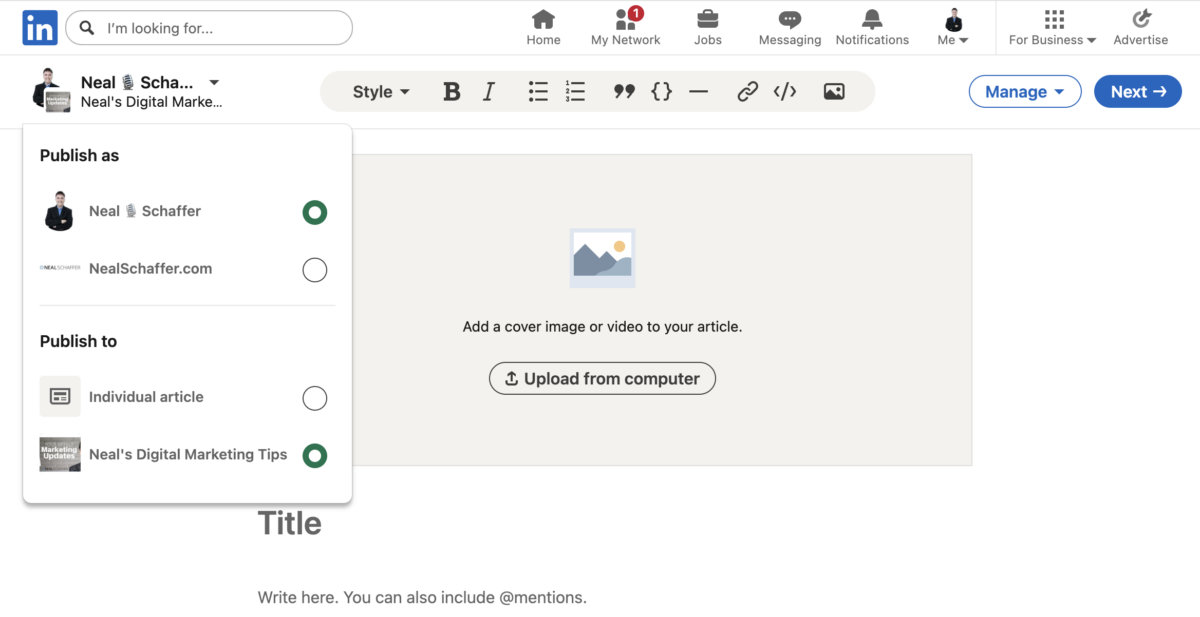
To publish an article on LinkedIn, go to your homepage and click “Write article” in the share box, just under “Start a post.” That opens LinkedIn’s article editor. Use the dropdown by your name to publish as yourself or as a Page, add a cover image and headline, write your body text, then click Publish.
LinkedIn’s own help page for publishing articles confirms each step. Here is the current flow, step by step.
- Open the editor. From your homepage, click “Write article” in the share box. If you click inside the box to start a regular post first, the article option disappears, so click “Write article” directly.
- Choose who is publishing. Use the dropdown by your name in the upper left to publish as yourself or as a Page you manage, and to choose between a standalone article and a new edition of your newsletter.
- Add a cover image. Upload an image from your computer for the top of the article. A relevant cover gives readers a reason to click, and it shows up alongside your headline when the article is shared.
- Write your headline. Enter a title in the headline field. Keep it short and accurate, and work in your main keyword.
- Add your body text. Type directly into the editor or paste from a word processor, then use the formatting toolbar at the top to add headings, bold, links, and images. If you paste from a document, scan for formatting that broke in transit and clean it up.
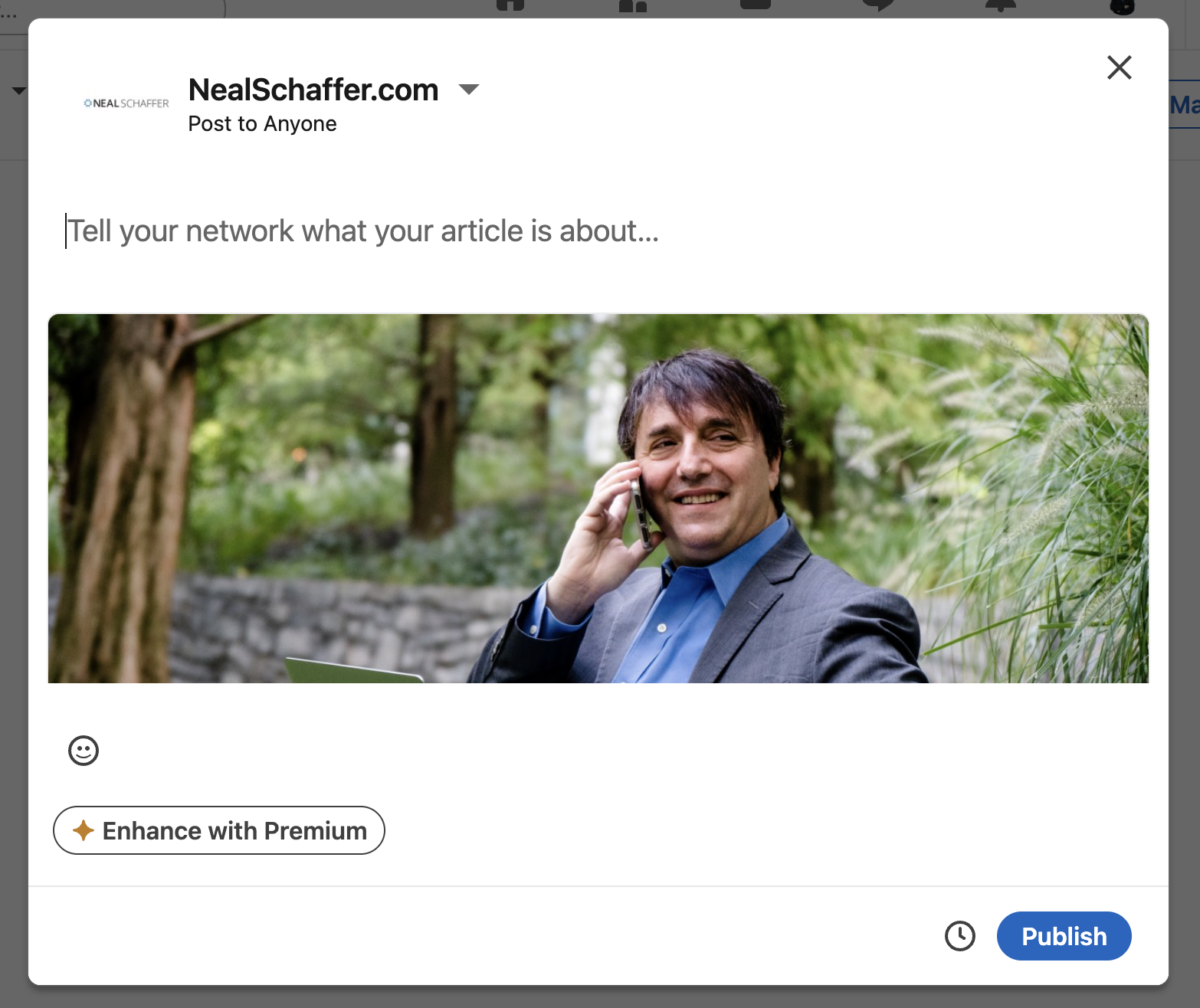
- Preview and publish. Use Preview to see the finished article, optionally share a draft for feedback first, then click Publish. LinkedIn prompts you to add a short note for your network, and a clock icon next to Publish lets you schedule it for later instead.
That is genuinely all there is to the mechanics. Once you click Publish, you are a published author on LinkedIn.
How Do You Publish an Article as a LinkedIn Company Page?
A LinkedIn Page publishes through the same editor, with one extra step. As a super admin or content admin, click “Write article” in the share box, then use the “Publish as” option to select your Page and click Next. From there you upload a cover image, add your title and body, and publish.
LinkedIn documents publishing articles or newsletter editions as your Page in detail, and a few Page-specific points are worth knowing. LinkedIn recommends a cover image around 1920 x 1080 pixels, and you can add a credit and caption beneath it. You can set comment controls before publishing, schedule the article with the clock icon, and after a newsletter edition goes out, use the Share button to generate a subscribe link or an embeddable subscribe button for your website. Publishing as a Page is a clean way to credit a key employee as the author while keeping the article tied to your brand.
Should You Publish an Article or a Newsletter Edition?
Inside the editor, you can publish a piece as a standalone article or as an edition of your LinkedIn newsletter, and the difference is distribution. A standalone article goes out once. A LinkedIn newsletter edition notifies every subscriber by email and on-platform when it publishes, which turns each article into a recurring touchpoint instead of a one-time event.
The smartest approach is to use both. Run your newsletter on a predictable cadence as your flagship content, and use standalone articles for timely, one-off, or experimental pieces that do not fit the newsletter rhythm. You get the subscriber-building power of the newsletter and the flexibility of individual articles, all from the same publishing tool.
Turn LinkedIn Into a Real Growth Channel
My latest book helps professionals, entrepreneurs, and business owners turn LinkedIn from a static profile into a real source of clients and growth.
Maximizing LinkedIn for Business Growth gives you clear, practical steps to build a profile that gets noticed and a network that actually sends business your way.
Grab your copy on Amazon and put it to work this week. Click the cover or the button below to get started.

What Are the Best Practices for a LinkedIn Article?
Best practices for a LinkedIn article come down to making it easy to start and easy to read. Write a short, accurate headline, add a relevant cover image, break the text up with headings and white space, and use visuals where they help. None of this is complicated, but skipping it is what gets an article abandoned.
Craft a Short, Accurate Title
Your title is the first impression, much like a resume when you are job hunting. Keep it brief and specific. Short headlines tend to perform best: CoSchedule’s headline research found that headlines around 55 characters earn the most click-throughs. Work your keyword in, and make sure the title honestly reflects the article so nobody feels baited.
Use a Relevant Cover Image
Do not let your article open as a wall of text. A cover image gives people something to react to, and it travels with the article as a preview. If you have your own photo, great. If not, pull a royalty-free image from a site like Unsplash, or design something on brand in Adobe Express, a free design tool I use and recommend as an official Adobe Express ambassador (Canva is a fine alternative if you already work in it). Either way, keep it clean and relevant.
Use Headings to Organize Your Content
See how this article is broken into sections with headings? There is a reason. Headings let readers skim, find the part they need, and come back to it later. They also give you natural places to work in keywords. An article without them reads as one exhausting block.
Use Plenty of White Space
People do not read online so much as scan. Nielsen Norman Group found that 79% of users scan any new page and only 16% read word for word. Short paragraphs, bullet points, and breathing room between ideas all help your busy professional audience pull out what matters without slogging through everything.
Use Visuals
Sometimes a chart, diagram, or infographic carries an idea better than a paragraph can. Visuals break up the text, hold attention, and make information easier to remember. For data-heavy or process-heavy articles in particular, one good visual can do the work of several paragraphs.
How Do You Promote Your LinkedIn Articles?
Publishing the article is the start, not the finish. To get a LinkedIn article seen, make it publicly viewable, feature it on your profile, share it across your other channels, send it selectively to people who will care, and engage with everyone who responds. The pros who get real return from LinkedIn treat promotion as seriously as writing.
Make the Article Public
LinkedIn limits what casual visitors can see by default, but for an article you usually want the opposite. Set your visibility so the article is readable by everyone, on and off LinkedIn, which is also what allows it to be found in search.
Feature It on Your Profile
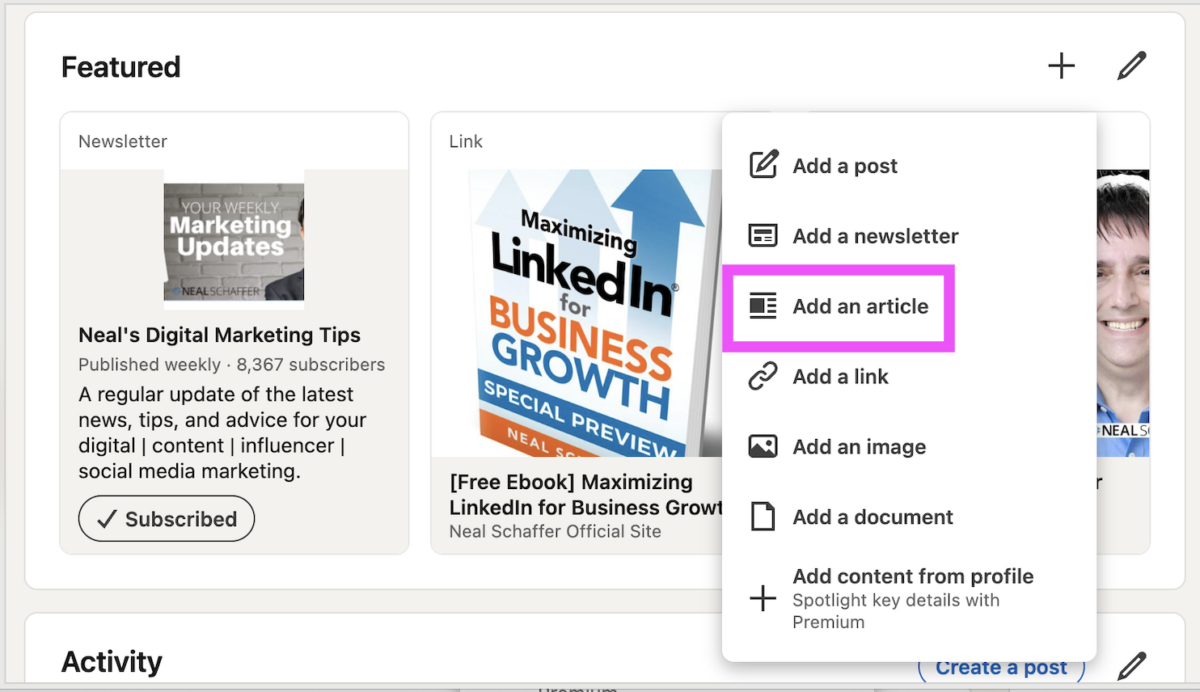
Add your best articles to the Featured section of your profile so they become a permanent part of your personal brand rather than scrolling out of sight. Whether you are presenting yourself as an individual professional or a key employee, this is prime real estate. It is one of the highest-impact pieces of an optimized LinkedIn profile, so do not skip it.
Share It Everywhere Your Audience Is
Once you have a share link, post it to your other channels, drop it in your newsletter, and, where appropriate, share it through corporate accounts. The same promotion discipline you would apply to any LinkedIn post applies here, and it should be part of your broader LinkedIn marketing strategy rather than an afterthought.
Message It Selectively
If a specific person would genuinely benefit from the article, send it to them with a short note. Be careful here. Blasting the same article to everyone, or messaging the same person often, reads as spam fast. Relevance is the whole game.
Engage With Everyone Who Engages
Reply to commenters and thank people who share your work. Their attention is driving more eyeballs to the article, and meaningful conversation is exactly what LinkedIn’s algorithm rewards. Answering questions and continuing the discussion is the least you can do, and it keeps the article alive longer.
Should You Republish Your Blog Content on LinkedIn?
Be careful with republishing. There is no Google penalty for it: Google has said there is no duplicate content penalty. The real risk is that LinkedIn articles get indexed and rank in Google, and LinkedIn’s domain strength can push its copy above your own. Better to repurpose a long post into a summary that links back, or publish LinkedIn-first.
This is the question I get asked most about LinkedIn publishing, and I think most people frame it wrong. On a past episode of my podcast Your Digital Marketing Coach, I made the case that instead of asking whether to copy your blog posts onto LinkedIn, “we should be approaching that in a different way, and asking different questions.” The better question is what content actually fits the LinkedIn audience. Answer that, and the republish-or-not debate mostly takes care of itself. If long-form ranking is your goal, my work on LinkedIn articles that rank goes deeper on the strategy.
How Do You Measure the ROI of Your LinkedIn Articles?
LinkedIn gives you built-in analytics for every article you publish. Open the article or newsletter edition you want from your profile, then open its analytics to see views, reach, engagement, and a breakdown of who actually read it. Those numbers tell you whether the piece is reaching the right people.
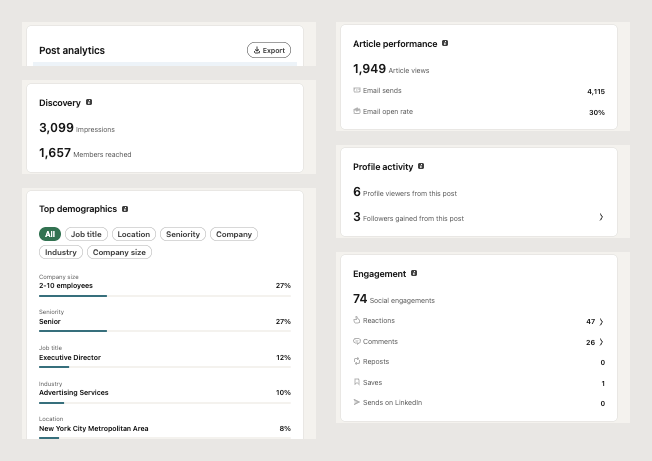
I publish my articles as newsletter editions, which is what I recommend for most people anyway, since a newsletter alerts your subscribers every time a new one goes out. To reach these numbers I open the newsletter, select the edition, and view its analytics. Pair LinkedIn’s data with your own LinkedIn analytics habits and, if you link from the piece back to your site, your Google Analytics. Between the two, you can see how many people read the article and whether it sent anyone toward your business, which is what tells you whether your publishing time is paying off.
Frequently Asked Questions About Publishing on LinkedIn
From your homepage, click “Write article” in the share box just under “Start a post.” That opens the article editor, where you choose to publish as yourself or as a Page, add a cover image and a headline, write or paste your text, and click Publish. LinkedIn then prompts you to share it with your network.
Yes. As a super admin or content admin, click “Write article” in the share box, use the “Publish as” option to select your Page, and click Next. It runs through the same editor individuals use and is a good way to credit a key employee as the author while keeping the article on your brand.
A post is a short feed update, up to 3,000 characters, built for quick consumption. An article is long-form content with its own page, accessible from your profile and able to rank in Google. Posts drive feed conversation; articles build an evergreen, searchable body of work.
Be cautious with full syndication. There is no duplicate content penalty, but LinkedIn’s SEO strength can let its copy outrank your own site. A safer approach is repurposing longer posts into 300 to 500-word summaries that link back, while creators get the best results from unique, LinkedIn-first content.
Open the article or newsletter edition you want from your profile and open its analytics. LinkedIn shows views, reach, engagement, and a breakdown of who read it. Because I publish through a LinkedIn newsletter, I reach the same stats by opening the newsletter and selecting the edition I want.
Start Publishing LinkedIn Articles That Build Your Brand
Publishing on LinkedIn comes down to a simple sequence: click “Write article” from your homepage, add a cover image and a keyword-rich headline, write your text, publish, and then promote it by making it public, featuring it on your profile, and sharing it where your audience already spends time. The writing is the easy part.
The people who get real return pair solid LinkedIn best practices with deliberate promotion. So pick one piece of expertise this week and publish it. If you want help building LinkedIn into a coordinated part of your marketing, download a free preview of Maximizing LinkedIn for Business Growth, or learn how my Fractional CMO services can put a senior strategy behind your content. Few things build a professional reputation as efficiently as a steady body of work published where your audience already is.
Actionable advice for your digital / content / influencer / social media marketing.
Join 13,000+ smart professionals who subscribe to my regular updates.